Loop and Learn: Practising Tricky Sections in the Piano Roll
Everyone who has learned a piece of music knows the feeling: the song flows along nicely, and then there are those two tricky bars. The chord change your fingers fumble every time. The best way to fix it is not to play the whole piece again and again, but to isolate the awkward passage and drill it slowly until it is easy.
That is exactly what the latest update to the Piano Roll tool is built for. We have added loop controls so you can focus on a handful of bars and play them round and round, and because the Piano Roll can follow along with a MIDI guide of the piece you are learning, you can practise against the real thing.
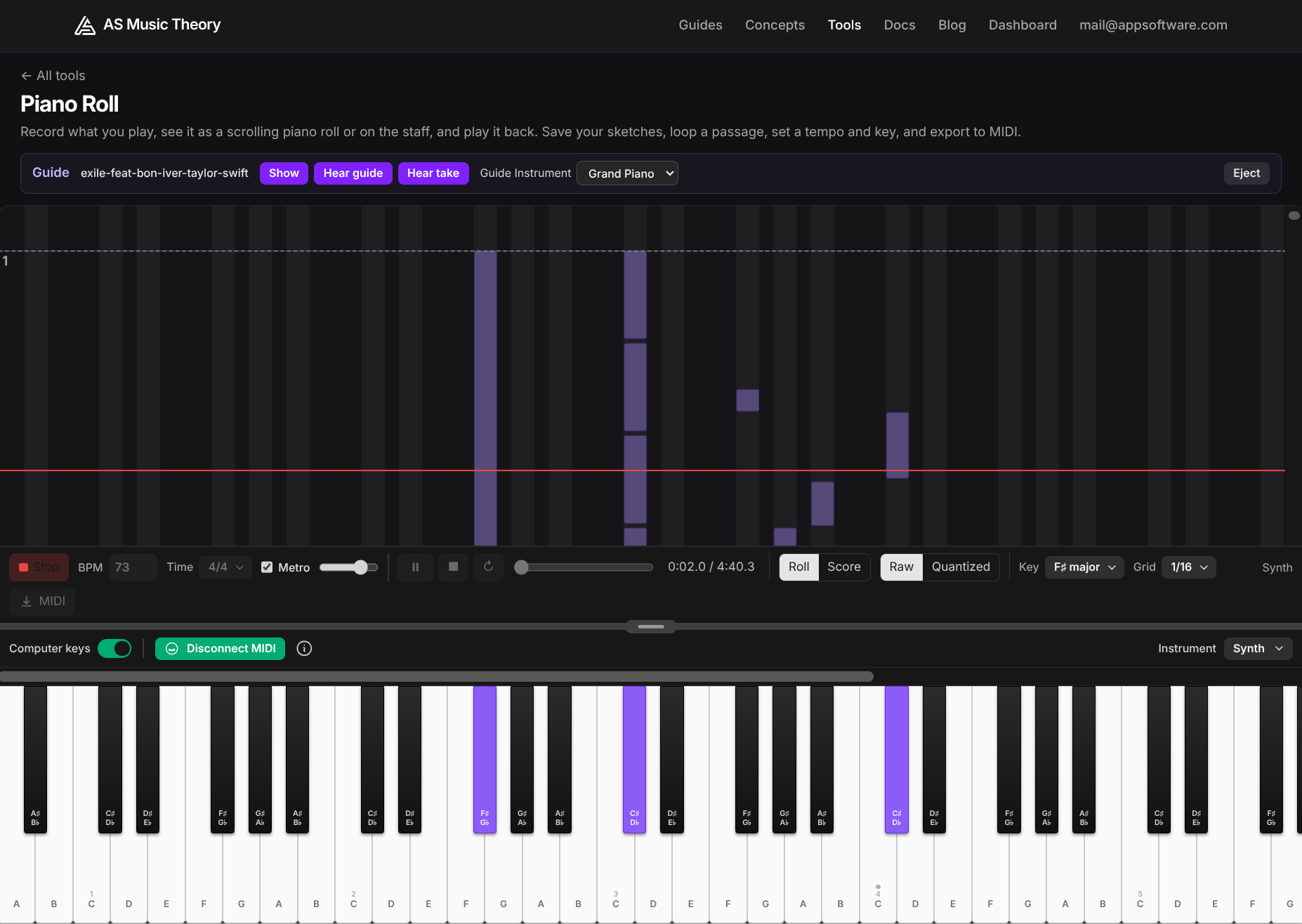
Bring your own song: MIDI guides
A guide is a MIDI file you load into the Piano Roll to play along with. MIDI files for an enormous range of songs are freely available online, and most notation and DAW software can export one too. Load a guide and it appears as a faint, play-along layer behind your own playing — on the scrolling roll, on the staff, and lit up on the keyboard — so you can see and hear what is coming.
A guide is read-only: it is the reference you follow, never something you overwrite by accident. You decide how it sits alongside you with three independent switches: Show it (or hide it and play from memory), Hear guide (or mute it), and Hear take (your own playing over the top). Loading a guide also borrows its key, time signature and tempo, so everything on screen lines up with the piece.
Loop a passage and drill it
Here is the part that makes the hard bars easy. Set a loop over just the bars you want — say bars 9 to 12, the ones that always trip you up — and the transport plays that section on repeat. A shaded band marks the looped bars on both the roll and the staff, so it is obvious what is about to come round again.
Two things make this genuinely useful for practice:
- Slow it right down. The tempo box scales playback without changing the notes or the notation, and when a guide is loaded it slows the guide and your playing together, in lockstep, so the two never drift apart. Take the passage at half speed until it is comfortable, then ease the tempo back up.
- Record yourself into the loop. With looping on, recording becomes a per-lap punch-in: each time round, what you play replaces that section, and a lap you sit out leaves the previous take untouched. So you can keep circling the same four bars, trying the run again and again, and keep the best attempt — no stopping and starting, no menus.
You can also loop without a guide at all, to drill a phrase from a sketch of your own.
See what you are playing, two ways
Whatever you record shows up immediately as a take — your own performance — which you can view as the scrolling piano roll or as standard notation on the grand staff, whichever helps more. When you are following a guide, your take and the guide sit one above the other, bar for bar, so you can compare your timing against the reference at a glance. A click on either view drops the playhead there, ready to loop from that spot.
Keep it, or take it with you
Anything worth keeping can be saved to your take library on the device, renamed, and reloaded later. And when you have nailed the passage, you can export your take to a MIDI file to open in any other music software.
Try it on something you are learning
The quickest way to feel the difference is to try it on a piece you are working on right now:
- Open the Piano Roll tool.
- Load a MIDI guide of the song.
- Set a loop over the section that is giving you trouble.
- Drop the tempo, and play it round until your fingers know the way.
Practising the hard bits is where real progress is made, and looping is the oldest trick for doing it well. We hope this makes that a little easier — and a little more fun. As always, more is on the way, and updates will be posted here as they land.